
Debugging Expert Advisors (EAs) in Meta Editor is an essential skill for building stable and profitable automated trading systems. Even a small coding or logical error can lead to unexpected trades or financial losses. A systematic debugging process helps developers understand how an EA behaves under different market conditions and ensures that every rule is executed correctly. Here’s How to Debug EAs in Meta Editor: A Step-by-Step Tutorial.
This step-by-step tutorial explains practical debugging techniques using Meta Editor’s built-in tools, such as error logs, `Print()` statements, breakpoints, and the Strategy Tester. By following these methods, traders and developers can improve EA reliability, performance, and confidence before deploying strategies in live trading environments. Let Onshoppie be here for you to help you figure out what would be your suitable Expert Advisor.
What Is Debugging in Meta Editor?
It is the process of testing, analyzing, and correcting errors in trading programmes such as expert advisors and scripts written in MQL4 or MQL5. It allows developers to run code. It allows developers to run code, step by step, and pause execution at specific lines using breakpoints, and closely monitor how variables and functions behave during runtime. By using Meta Editor’s built-in debugging tools, traders and developers can identify logical errors, runtime issues, and unexpected behavior that may not appear during compilation. Debugging is essential for ensuring that an EA executes trades correctly, handles market conditions properly, and performs reliably before being deployed on a live trading account.
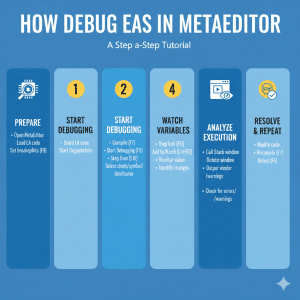
Step-by-Step Guide to Debugging EAs in Meta Editor
Debugging Expert Advisors in Meta Editor is a critical step in developing reliable and error-free trading strategies. A structured, step-by-step approach helps identify coding mistakes, logical errors, and performance issues efficiently. This guide outlines practical methods and tools within Meta Editor to systematically test, analyze, and refine your EA before live deployment.
Step 1: Compile the EA and Fix Compilation Errors
Start by compiling the expert advisor to identify syntax errors, missing declarations, or incorrect function usage. Compilation errors must be resolved before debugging can begin. This step ensures the code structure is valid and that the EA can be executed in Meta trader without fundamental issues.
Step 2: Enable the Debugger in Meta Editor
Once the EA compiles, enable the debugger from Meta Editor. This activates step-by-step, allowing you to pause code at runtime. The debugger provides visibility into how EA behaves while processing market data and executing trading logic.
Step 3: Set Breakpoints in the Code
Breakpoints allow you to pause execution at specific lines of code. Place them at critical logic points, such as order placement, indicator calculation, or condition checks. This helps isolate problematic sections and observe how the EA reaches certain decisions during execution.
Step 4: Run the EA in Debug Mode
Run the EA in debug mode, typically through the strategy tester using historical data. The EA will execute until it reaches a breakpoint, enabling controlled analysis. This step stimulates real trading conditions and helps identify logic errors that occur during live market scenarios.
Step 5: Monitor Variables Using the Watch Window
The watch window displayed real-time values of selected variables during execution. By monitoring variables at each breakpoint, you can verify calculations, condition evaluations. This step is critical for detecting incorrect values that lead to faulty trading decisions.
Step 6: Step Into, Step Over, and Step Out of Code
These controls allow you to navigate through code execution precisely. Step into enters fusion only. Step Over executes functions without entering them, and Step Out exits the current function. Using these options helps analyse execution flow and pinpoint logical breakdowns.
Step 7: Analyze Call Stack and Execution Flow
The call stack shows the sequence of function calls leading to the current execution point. Analysing it helps understand how the EA reached a specific state. This step is especially useful for debugging complex EAs with nested functions and event-driven logic.
Onshoppie as Your Expert Advisor Saviour
Onshoppie serves as a reliable partner for traders and developers seeking robust, error-free Expert Advisors. With deep expertise in Meta Trader development and debugging, Onshoppie helps identify hidden issues, optimize EA performance, and ensure strategies function as intended across market conditions. From code review and manual debugging to Strategy Tester analysis and performance optimization, Onshoppie provides end-to-end support. This expert assistance reduces development time, minimizes trading risks, and allows traders to focus on strategy execution with greater confidence and consistency. Here are a few expert advisors by Onshoppie for you to try out. Let us help you find the perfect one for you, and start trading today:-
Golden Mirage EA MT4 v2.50 FOR Build 1444+
Gold Trend Scalping EA MT5 v5.5 For Build 5430+
The Binary Destroyer Indicator MT4 V8.0 For Build 1440
Burning Grid EA MT5 v2.17 For Build 5283
Using Print() Statements for Manual Debugging
One of the simplest and most effective Methods for manual debugging in Meta Editor. By inserting [print()] at key points in your Expert Advisor’s code, you can monitor variable values, track execution flow, and confirm whether specific conditions are being met during runtime. These messages are displayed in the experts and journal tabs. This provides real-time insight into how the EA behaves under different market conditions. This approach is particularly useful for identifying logical errors, unexpected parameter values, or sections of code that are not executing as intended. [print()] makes debugging quicker to implement and invaluable during early development and testing stages.
Debugging EAs Using the Strategy Tester
Debugging Expert Advisors using the Strategy Tester in Meta Editor allows developers to analyze EA behavior in a controlled, simulated market environment. By running backtests on historical data, you can observe how the EA reacts to different price movements without risking real capital. The Strategy Tester enables step-by-step execution, visualization of trades, and detailed logs of orders, errors, and variable values. The identification of logical flaws and timing issues, and incorrect trading connections becomes easier with Debugging EAs in Meta Editor. This method is especially effective for validating strategies and ensuring the EA performs as expected before deploying it on a live trading account.
Conclusion
We hope ot have provided you with all the information required for you to successfully have a quick understanding of How to Debug EAs in Meta Editor: A Step-by-Step Tutorial. To know more such information about expert advisors or buy one, contact Onshoppie today.
Frequently Asked Questions
What is debugging in Meta Editor, and why is it important for EAs?
Debugging in Meta Editor is the process of identifying and fixing errors in Expert Advisors (EAs). It is essential to ensure correct trade execution, prevent logic flaws, and improve EA performance under real market conditions.
How do I enable the debugger in Meta Editor?
You can enable the debugger by opening your EA in Meta Editor and clicking the Debug button or pressing F5. This allows you to run the EA step by step and monitor its behavior.
What are breakpoints, and how are they used in EA debugging?
Breakpoints pause the EA’s execution at specific lines of code. They help you inspect variable values, logic flow, and execution timing at critical points in the program.
Can I debug an EA using historical data in Meta Trader?
Yes. MetaEditor allows debugging in the Strategy Tester using historical data, which helps simulate real trading conditions and identify issues before live deployment.
How do I identify runtime errors while debugging an EA?
Runtime errors can be identified using the Experts and Journal tabs in Meta Trader, along with error codes returned by functions like GetLastError() during debugging.
What is the difference between compiling and debugging an EA?
Compiling checks the code for syntax errors, while debugging helps analyze logical errors by running the EA step by step and observing its behavior during execution.
How can I monitor variable values during debugging?
During a debug session, you can view and track variable values in the Variables or Watch window to understand how data changes as the EA runs.
Is it possible to debug multi-currency or multi-timeframe EAs?
Yes, but it requires careful setup. You must ensure the correct symbols and timeframes are loaded and closely monitor data handling logic during debugging.
Products
-
 Quantum Queen X EA MT5 V4.3 MQ5 Source Code
Original price was: $1,799.00.$19.95Current price is: $19.95.
Quantum Queen X EA MT5 V4.3 MQ5 Source Code
Original price was: $1,799.00.$19.95Current price is: $19.95.
-
 Smart Gold Hunter EA MT5 V2.0 MQ5 Source Code
Original price was: $249.00.$28.95Current price is: $28.95.
Smart Gold Hunter EA MT5 V2.0 MQ5 Source Code
Original price was: $249.00.$28.95Current price is: $28.95.
-
 The Gold Reaper EA MQ5 V4.1 Source Code + Setfiles
Original price was: $949.00.$19.95Current price is: $19.95.
The Gold Reaper EA MQ5 V4.1 Source Code + Setfiles
Original price was: $949.00.$19.95Current price is: $19.95.
-
 ATM Alpha BOT MT5 For Build 5984+
$14.95
ATM Alpha BOT MT5 For Build 5984+
$14.95
-
 Pandora Box EA MT5 V1.1 + SetFiles With DLL 5984
$14.95
Pandora Box EA MT5 V1.1 + SetFiles With DLL 5984
$14.95
-
 Bully Max Pro EA MT5 For Build 5984+
$14.95
Bully Max Pro EA MT5 For Build 5984+
$14.95
-
 Trinetra EA MT5 + SetFiles For Build 5984+
$34.95
Trinetra EA MT5 + SetFiles For Build 5984+
$34.95
-
 Strict HedgeZone Final EA MT5 V10 + SetFiles For Build 5984+
$14.95
Strict HedgeZone Final EA MT5 V10 + SetFiles For Build 5984+
$14.95
Recent reviews
-
 Advanced Dashboard Currency Strength
by Balram
Advanced Dashboard Currency Strength
by Balram