


AW Recovery EA V3.30 MT4 + Setfiles For Build 1470+
Original price was: $195.00.$14.95Current price is: $14.95.
AW Recovery EA turns the painful chore of managing deep drawdowns into a structured, rules-based process automatically.



Description
Main Title
AW Recovery EA: A Complete Guide to Safe Position Recovery in MetaTrader
Alternative Title
AW Recovery EA – Your Step-By-Step Roadmap to Repairing Losing Trades Without Overloading Your Account
Table of Contents
- What Is AW Recovery EA?
- Who Should Use the Expert Advisor?
- Key Advantages Over Traditional Grid Systems
- Preparing for Your First Session
- Full Installation & Setup Walk-Through
- Explaining Every Input in Plain English
- Risk Management & Best Practices
- Troubleshooting Checklist
- Final Thoughts & Next Steps
What Is AW Recovery EA?
AW Recovery EA is an Expert Advisor (EA) for MetaTrader 4 / 5 that specializes in salvaging unprofitable positions. Instead of closing an entire losing basket in one painful hit, the EA:
- Locks the current drawdown with a hedge order
- Splits every losing position into small fragments
- Closes each fragment individually, funded by profit from new “restoring” trades
The result? Smaller equity swings, lower margin load, and a smoother path back to break-even compared with classic martingale or grid strategies that only exit in big chunks.
Who Should Use the Expert Advisor?
| Scenario | Why AW Recovery EA Helps |
|---|---|
| Manual trader stuck in red | Automates recovery so you can focus on new setups |
| Algorithmic trader running multiple EAs | Can pause the offending robot and fix its mess |
| Prop firm challenge participant | Reduces risk of hitting daily loss limits |
| Educator or signal provider | Demonstrates responsible drawdown control to students/followers |
| Broker tester / analyst | Stress-tests pairs under controlled recovery logic |
If any of these resonate, AW Recovery EA can slot into your toolkit quickly thanks to its simple “install-and-go” workflow.
Key Advantages Over Traditional Grid Systems
- Lower Deposit Load – Because the EA works with micro-lots for restoring orders, it requires far less free margin than a typical martingale.
- Trend Filtering – Optional moving-average or custom indicator filters keep new trades in line with the prevailing market bias.
- Built-In Safeguards – Time filters, max spread controls, and news filters reduce execution risk.
- Flexible Launch Modes – Start immediately, delay until a chosen drawdown, or wait for manual confirmation.
- One-Stop Control Panel – Disable other EAs, manage partial closes, and simulate scenarios right from the chart.
Preparing for Your First Session
Follow this pre-flight checklist to keep things orderly:
- Select the Right Symbol
- The EA is not multi-currency. Attach it separately to EURUSD, GBPJPY, etc.
- Verify Account Type
- Works on demo, cent, micro, and standard accounts. Ensure hedging is allowed if you want true locking.
- Gather Baseline Metrics
- Note current drawdown %, free margin, and average entry price of open losers.
- Decide on Locking or No-Locking Mode
- Hedging (locking) stabilizes equity; no-locking keeps exposure but may recover faster in a strong reversal.
- Set Realistic Targets
- Typical users aim for a complete exit rather than profit on top, but you can let it push into net green if market conditions improve.
Full Installation & Setup Walk-Through
Below is a quick paper guide. A video walk-through is also available on the publisher’s YouTube channel.
Step 1: Download & Attach
- Download AW Recovery EA.ex4 (MT4) or .ex5 (MT5).
- Open MetaTrader → File → Open Data Folder → MQL4/5 → Experts → paste file.
- Restart the platform or right-click “Expert Advisors” → Refresh.
- Drag the EA to the desired chart.
Step 2: Enable Algo Trading
- Click “Algo Trading” (MT5) or “AutoTrading” (MT4) so it turns green.
- Allow live trading and DLL imports if prompted.
Step 3: Configure Inputs
Below is the short version—see Explaining Every Input for details.
StartMode = WaitForDrawdown
DrawdownToStart = 20
LockingMode = true
FirstAveragingVolume = 0.03
AveragingStepPips = 120
TrendFilterMA = 200
TakeProfitPerPart = 5 USD
DisableOtherEAs = true
Step 4: Confirm Visual Elements
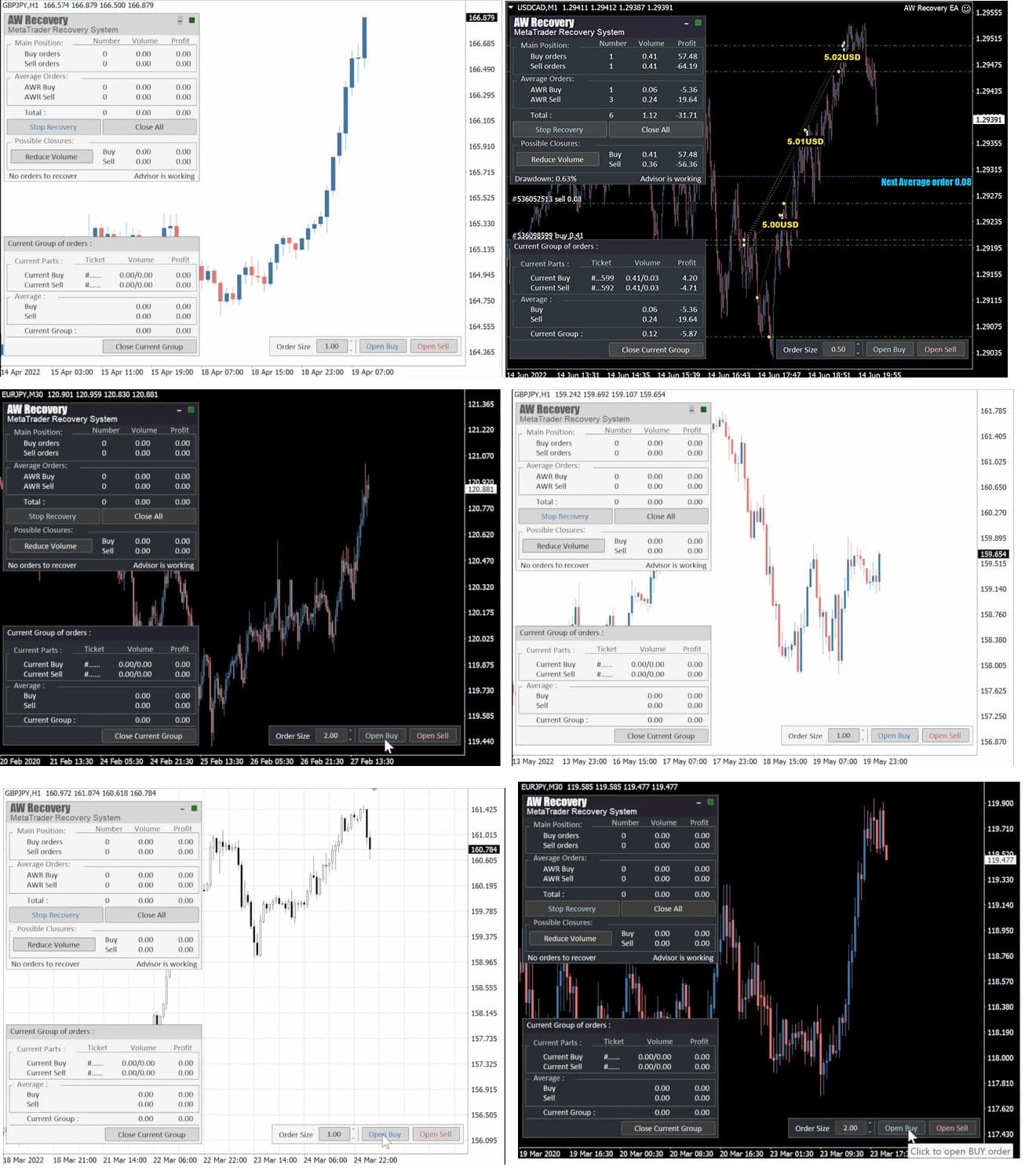
- A floating panel appears showing: current lot summary, locked lots, number of restoring orders, partial-close tracker, and status log.
Step 5: Let the EA Work
- If you started in standby, it will activate once total floating loss meets the trigger.
- Monitor progress but avoid the temptation to interfere.
Explaining Every Input in Plain English
Below are the most frequently used parameters. Names can vary slightly between MT4 and MT5 builds.
| Input Name | Recommended Range | What It Does |
|---|---|---|
| Start Mode | 0 = Immediate, 1 = Wait for Drawdown, 2 = Manual | Defines when the EA should begin its recovery cycle |
| Drawdown To Start (%) | 5–50 | If Start Mode=1, the EA activates when floating loss equals this percentage of deposit |
| Locking Mode | true / false | true = open a hedge order to freeze further loss |
| Lot Of First Averaging | 0.01–0.2 | Micro-lot size for the first restoring trade |
| Averaging Step (Points) | 60–2000 | Minimum distance between restoring orders |
| Lot Multiplier | 1.0–3.0 | Increases each new restoring order lot; 1.0 = fixed |
| TakeProfit Each Part | $1–$50 | Net profit needed before the EA closes one portion of the losing order |
| CloseProfitableOrders First | true / false | If true, the EA auto-exits existing winners to offset loss |
| DisableOtherEAs | true / false | Sends a special command to stop other robots trading this pair |
| TrendFilter MA_Period | 0 = off, 50–2000 | Period of moving average used to filter restoring orders |
| MaxSpread | 0 = off, else value in points | Skips entries if spread is too high |
| NewsFilter | true / false | Pauses operations during high-impact events (requires calendar file / URL) |
| EquityStopLoss (%) | 0 = off | Hard cutoff to protect entire account |
| EquityTakeProfit (%) | 0 = off | Optional: close everything if net gain hits target |
Risk Management & Best Practices with AW Recovery EA
- Lower Your Lot Multiplier
- Setting it above 2.0 makes recovery faster but increases exposure.
- Respect News Filters
- Sudden volatility can gap both hedging and restoring orders.
- Test New Symbols Separately
- Each pair has unique ADR (Average Daily Range). Calibrate “AveragingStep” accordingly.
- Watch Broker Rules
- Some brokers restrict hedging or have FIFO. Turn off locking if required.
- Set EquityStopLoss
- A 50 % haircut is harsh. Protect the remainder for another day.
- Never Run Two Recovery EAs on the Same Pair
- They will fight each other over margin and logic.
Troubleshooting Checklist
| Symptom | Likely Cause | Quick Fix |
|---|---|---|
| EA shows “Standby” forever | No open losing orders on that symbol | Open a dummy micro-lot trade or lower DrawdownToStart |
| Hedge opens but restores never start | Trend filter blocking entries | Reduce MA period or disable filter |
| Lots of restoring orders but no partial closes | TakeProfitPerPart too high | Lower the dollar target |
| Margin call during recovery | LotMultiplier too aggressive | Use smaller FirstLot and multiplier |
| Other EA still trading | DisableOtherEAs=false | Toggle to true or manually turn off robot |
Final Thoughts & Next Steps for AW Recovery EA
AW Recovery EA turns the painful chore of managing deep drawdowns into a structured, rules-based process. By locking losses, slicing them into digestible pieces, and tactically closing each slice, the tool reduces stress on both your margin and your mindset.
Happy and safe trading!
✍️ Signal:-
???? https://youtu.be/Sx_QwmvSAEY
Vendor Site – Click Here
| Membership | Yearly Membership |
|---|---|
| Additional Services | Unlock & Decompile |
| Recommended Brokers | Exness Broker, FPMarkets |
| Recommended VPS | FXVM (Low Latency) |
| Youtube Channel | ForexForYou |
| Telegram Channel | Onshoppie Forex EA's & Indicators |
| Telegram Support | Onshoppie Support |
| Installation Guides | Onshoppie Forex Guides |
Brand
ea-mt4
Only logged in customers who have purchased this product may leave a review.
Related products



Products
-
 Perceptrader AI EA MT5 V2.43 + Setfiles For Build 5836+
Original price was: $2,800.00.$14.95Current price is: $14.95.
Perceptrader AI EA MT5 V2.43 + Setfiles For Build 5836+
Original price was: $2,800.00.$14.95Current price is: $14.95.
-
 Quantum Emperor EA MT5 V7.5 For Build 5836+
Original price was: $799.00.$14.95Current price is: $14.95.
Quantum Emperor EA MT5 V7.5 For Build 5836+
Original price was: $799.00.$14.95Current price is: $14.95.
-
 Quantum King EA MT5 V3.1 For Build 5836+
Original price was: $649.00.$14.95Current price is: $14.95.
Quantum King EA MT5 V3.1 For Build 5836+
Original price was: $649.00.$14.95Current price is: $14.95.
-
 Bitcoin Robot Grid EA MT4 V6.0 For Build 1473+
Original price was: $899.00.$14.95Current price is: $14.95.
Bitcoin Robot Grid EA MT4 V6.0 For Build 1473+
Original price was: $899.00.$14.95Current price is: $14.95.
-
 IS PI Scalper EA Virtual Level Final MT4 + SetFiles
$14.95
IS PI Scalper EA Virtual Level Final MT4 + SetFiles
$14.95
-
 ArtQuant Gold EA MT5 V3.0 For Build 5836+
Original price was: $700.00.$14.95Current price is: $14.95.
ArtQuant Gold EA MT5 V3.0 For Build 5836+
Original price was: $700.00.$14.95Current price is: $14.95.
-
 Gold Trap EA MT5 V4.24 + Setfiles For Build 5836+
$24.95
Gold Trap EA MT5 V4.24 + Setfiles For Build 5836+
$24.95
-
 AI X HFT VIP EA MT4 V14 With DLL 1473
$14.95
AI X HFT VIP EA MT4 V14 With DLL 1473
$14.95
Recent reviews
-
 Advanced Dashboard Currency Strength
by Balram
Advanced Dashboard Currency Strength
by Balram
Reviews
There are no reviews yet.