

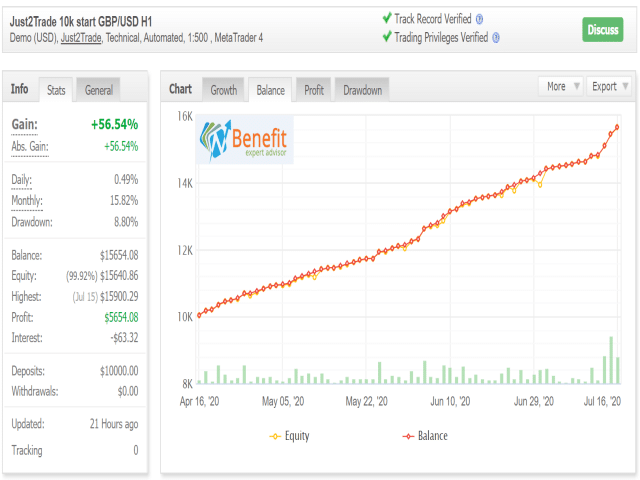
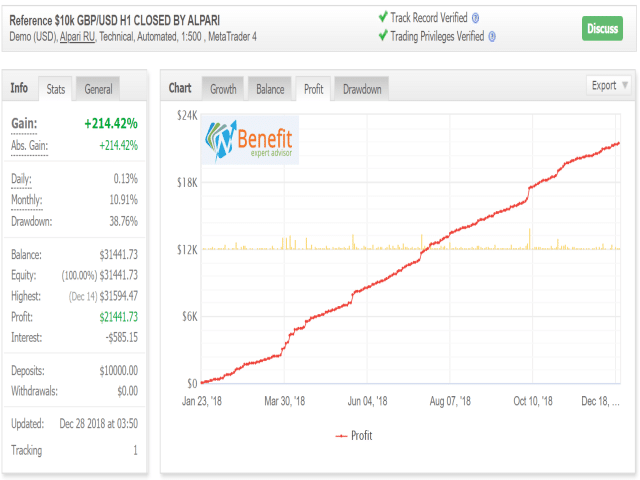
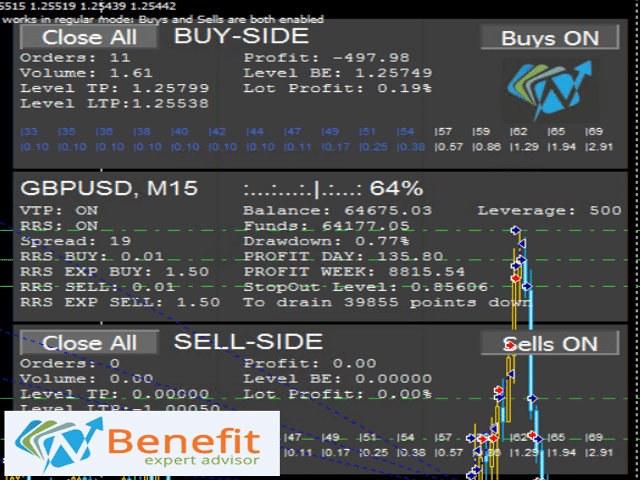
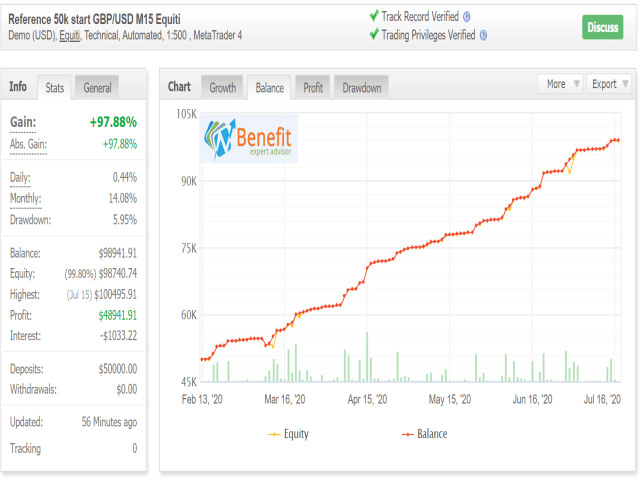
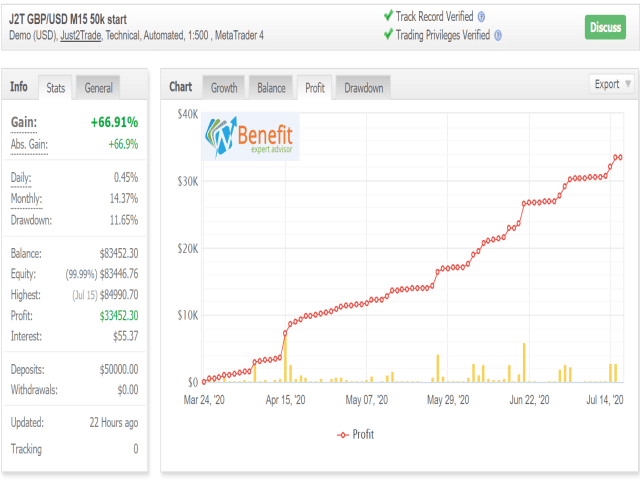
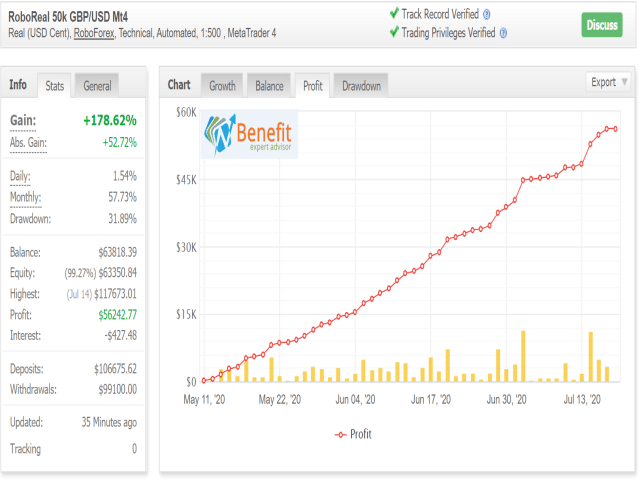
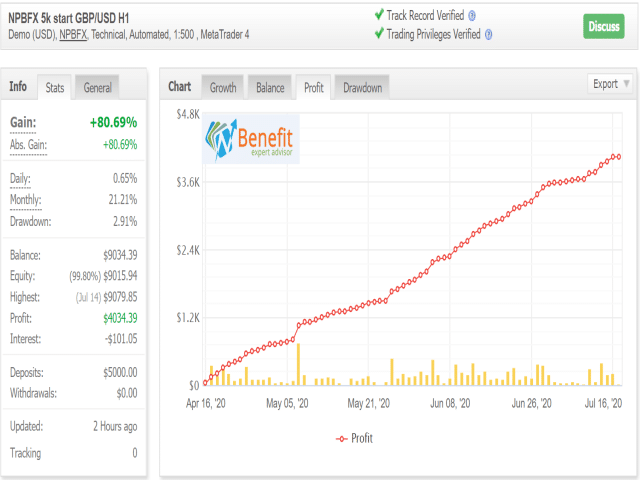
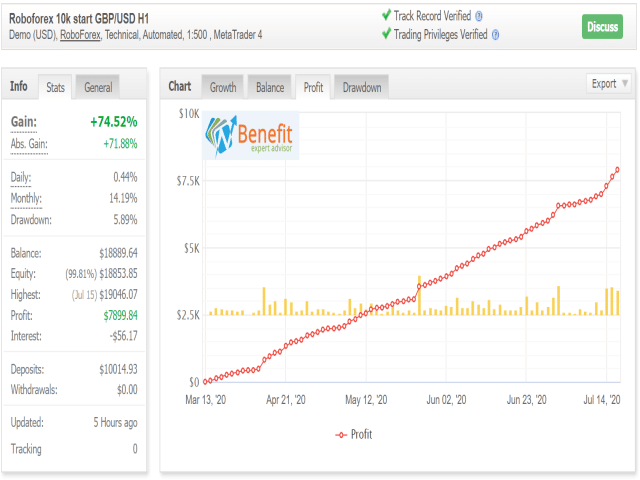
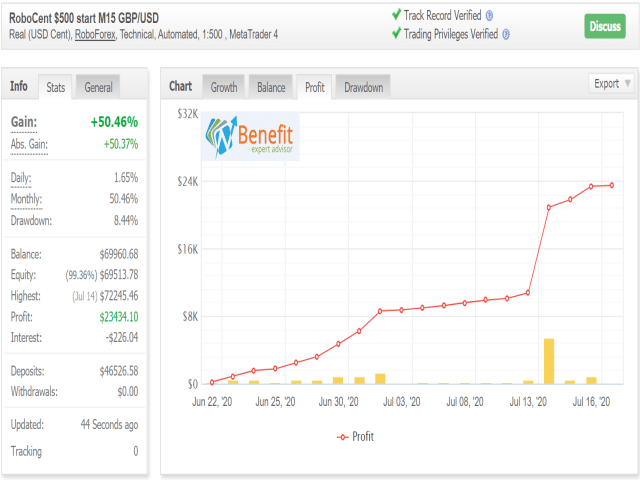

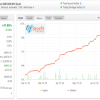
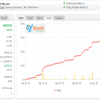
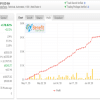
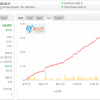
BENEFIT EA V5.1 MT4 + Setfiles For Build 1476+
Original price was: $9,600.00.$14.95Current price is: $14.95.
Looking for proven ways to maximize Benefit EA? Our expert guide reveals surprising secrets to help you succeed. Don’t miss this exciting opportunity.


Description
Benefit EA: A Complete, Step-By-Step Guide for Everyday Traders
Alternative Title – BENEFIT EA: Everything You Should Know Before You Click “Run”
Table of Contents
- Introduction: Why Traders Talk About Benefit EA
- What Is Benefit EA?
- How Benefit EA Works in Simple Terms
- Choosing Currency Pairs, Timeframes & Deposit Size
- Installing Benefit EA on MetaTrader in 6 Easy Steps
- Risk Management Tips for Grid Trading
- Frequently Asked Questions
- Final Thoughts & Next Steps
Introduction: Why Traders Talk About Benefit EA
The foreign-exchange market never sleeps, but most traders need to. Benefit EA was designed to keep a level head when people cannot, opening and closing trades by following clear, rule-based instructions. Many users value its flexible grid structure, the built-in Risk Reduction System, and the option to run in fully automatic or semi-automatic mode.
In this guide we explore every setting, from the MAGIC number to the Time Filter, so you can decide whether the tool fits your style.
What Is Benefit EA?
Benefit EA is a non-indicative flexible grid adviser with special entry points that provide a statistical advantage, revealed through the mathematical modeling of market patterns.
In plain English, the expert adviser (EA) opens a series of trades—a “grid”—without waiting for moving averages or oscillators to say buy or sell. Instead, it looks at price gaps and probability models tested across millions of ticks. By skipping classic indicators, Benefit EA avoids “lag” and focuses on spacing trades at measured intervals.
Key facts:
- Works on MetaTrader 4 and MetaTrader 5
- Closes trades by take-profit (TP) or trailing stop; there is no fixed stop loss
- Lets you pre-plan lot increments for each new order in the grid
- Offers a Time Filter so the EA can trade only during specific hours shown on the broker’s server clock
How Benefit EA Works in Simple Terms
- Initial Entry• When the EA’s internal logic spots a suitable gap or price level, it opens the first order with Min_Lot_Buy or Min_Lot_Sell.
- Building the Grid• If the market moves against the first trade by Step_Buy or Step_Sell points, Benefit EA adds a second order, often at a larger lot size, depending on your Lot_Exp value.• This process can continue up to Max_Trades (17 by default).
- Exiting the Grid• As soon as combined profit reaches the TP Buy or TP Sell level— or a trailing stop catches the move— all open trades close.
- Risk Reduction System (RRS)• RRS can kick in mid-cycle, trimming risk by closing part of the grid if the market goes into deep drawdown for too long.
- Time Management• The Time Filter prevents new cycles during news or low-liquidity periods.
Because there is no fixed stop loss, the grid can stay open for hours or even days. Lot sizing and Step settings are therefore critical.
Choosing Currency Pairs, Timeframes & Deposit Size
Supported pairs (suggested):GBPUSD, USDJPY, EURUSD, EURJPY, USDCAD, USDCHF, AUDUSD
Recommended timeframe:M1, M5, M15 for scalping-style grids, or H1 for calmer trades.
Base deposit & leverage:• $5,000–$10,000 on 1:500 is common for default settings.• With leverage as low as 1:20, reduce Max_Trades and Lot_Exp to stay within margin.
| Pair | Timeframe | Typical Spread | Volatility Note |
|---|---|---|---|
| GBPUSD | M15 | 1.5 pips | Works well with default file |
| EURUSD | M15 | 1.0 pips | Tighter, lower volatility |
| USDJPY | M5 | 1.2 pips | Quick bursts during Asian session |
Installing Benefit EA on MetaTrader in 6 Easy Steps
- Download & Copy• Place
Benefit_EA.ex4inMQL4/Experts. - Restart the Terminal• This refreshes the Navigator window.
- Drag to Chart• Choose your pair/timeframe and drag the EA icon onto the chart.
- Enable Algo Trading• Click the green play button or press
Ctrl+E. - Adjust Inputs• Tick “Allow live trading”, then review each parameter described earlier.
- Save Template• Right-click chart → Template → Save. This lets you apply the setup later with one click.
Tip: Before going live, always run Strategy Tester in visual mode. If something behaves oddly, double-check Step and Lot_Exp values.
Risk Management Tips for Grid Trading
Grid systems can generate steady profits, but equity swings can be large. Use the ideas below:
- Limit Max_Trades – Even reducing from 17 to 10 can cut exposure by 40% or more.
- Cap Max_Lot – Prevents the last orders from ballooning.
- Diversify Pairs – Running very small lots on multiple pairs spreads risk.
- Use RRS_Profit_Percent – A 80% setting lets you close nearly flat instead of waiting forever.
- Monitor Economic Calendar – ForexFactory lists high-impact news; switch off New_Cycle before big events.
Frequently Asked Questions
Q1: Why doesn’t Benefit EA place a stop loss?A: The grid relies on spacing and lot growth instead. Placing a tight SL would close trades prematurely and break the underlying math.
Q2: Can I use it on a 1:30 leverage retail account?Yes, but reduce Lot_Exp and Max_Trades. You might also widen Step to lower the chance of hitting margin limits.
Q3: Does the EA work on indices or metals?Technically, yes. You need to adjust Step (point values differ) and test thoroughly.
Q4: What VPS specs are needed?1 vCPU, 1 GB RAM is enough. The EA is light on resources.
Final Thoughts & Next Steps
Benefit EA offers a transparent way to run a flexible grid strategy on well-known currency pairs. With features like the Risk Reduction System and server-time Time Filter, traders can keep risk on a tighter leash than many traditional grid robots.
Vendor Site – Click Here
| Membership | Yearly Membership |
|---|---|
| Additional Services | Unlock & Decompile |
| Recommended Brokers | Exness Broker, FPMarkets |
| Recommended VPS | FXVM (Low Latency) |
| Youtube Channel | ForexForYou |
| Telegram Channel | Onshoppie Forex EA's & Indicators |
| Telegram Support | Onshoppie Support |
| Installation Guides | Onshoppie Forex Guides |
Brand
ea-mt4
Only logged in customers who have purchased this product may leave a review.
Related products

Products
-
 Quantum Queen X EA MT5 V4.3 MQ5 Source Code
Original price was: $1,799.00.$19.95Current price is: $19.95.
Quantum Queen X EA MT5 V4.3 MQ5 Source Code
Original price was: $1,799.00.$19.95Current price is: $19.95.
-
 Smart Gold Hunter EA MT5 V2.0 MQ5 Source Code
Original price was: $249.00.$28.95Current price is: $28.95.
Smart Gold Hunter EA MT5 V2.0 MQ5 Source Code
Original price was: $249.00.$28.95Current price is: $28.95.
-
 The Gold Reaper EA MQ5 V4.1 Source Code + Setfiles
Original price was: $949.00.$19.95Current price is: $19.95.
The Gold Reaper EA MQ5 V4.1 Source Code + Setfiles
Original price was: $949.00.$19.95Current price is: $19.95.
-
 ATM Alpha BOT MT5 For Build 5984+
$14.95
ATM Alpha BOT MT5 For Build 5984+
$14.95
-
 Pandora Box EA MT5 V1.1 + SetFiles With DLL 5984
$14.95
Pandora Box EA MT5 V1.1 + SetFiles With DLL 5984
$14.95
-
 Bully Max Pro EA MT5 For Build 5984+
$14.95
Bully Max Pro EA MT5 For Build 5984+
$14.95
-
 Trinetra EA MT5 + SetFiles For Build 5984+
$34.95
Trinetra EA MT5 + SetFiles For Build 5984+
$34.95
-
 Strict HedgeZone Final EA MT5 V10 + SetFiles For Build 5984+
$14.95
Strict HedgeZone Final EA MT5 V10 + SetFiles For Build 5984+
$14.95
Recent reviews
-
 Advanced Dashboard Currency Strength
by Balram
Advanced Dashboard Currency Strength
by Balram
Reviews
There are no reviews yet.